Befrey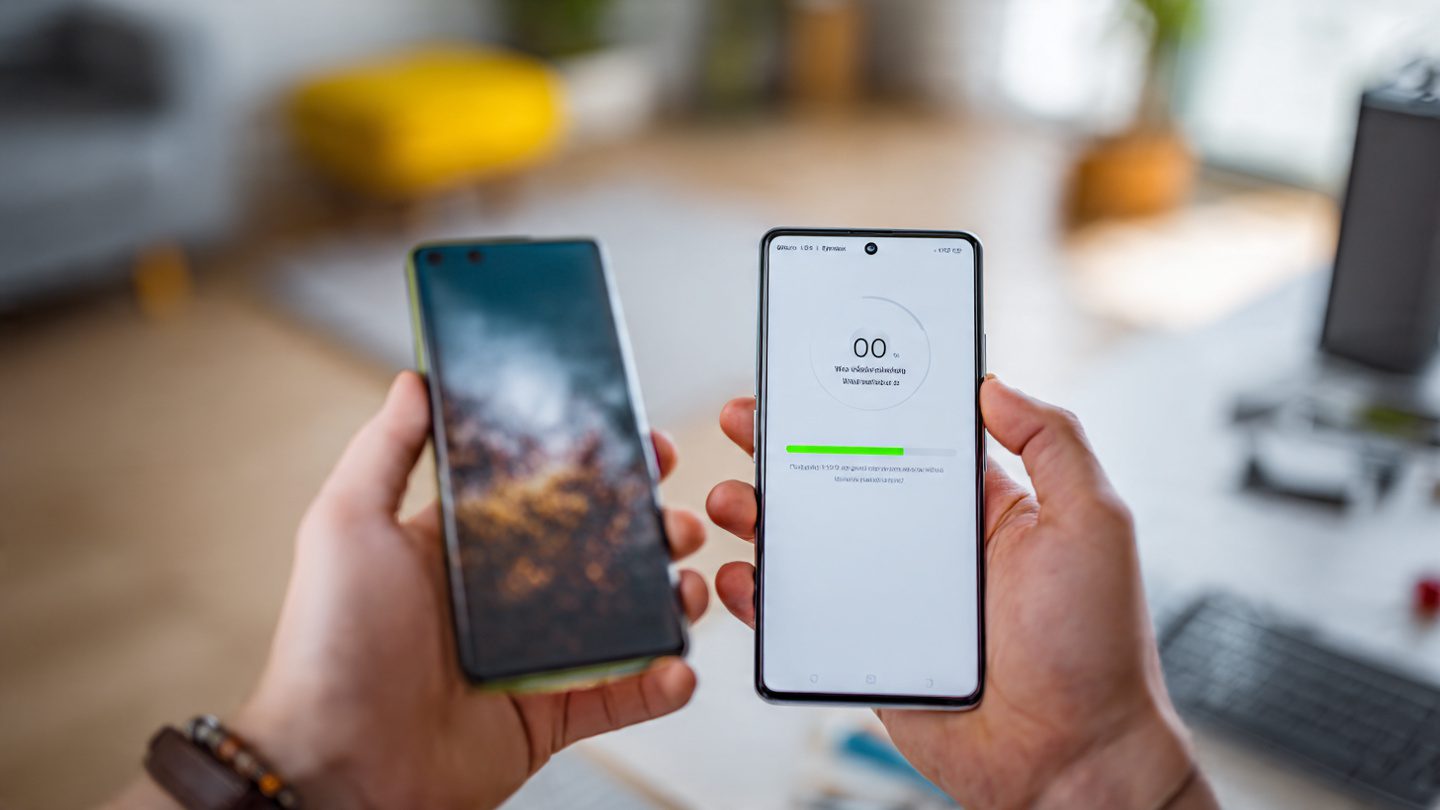
Buying a new smartphone is exciting. A faster processor, a better camera, and a fresh battery can make the device feel like a huge upgrade. But the excitement often turns into stress when people ask the same question: How to transfer all data from your old phone to your new one. Many users worry about losing photos, contacts, messages, apps, or important files. The good news is that modern smartphones offer powerful and reliable ways to move everything safely. Understanding how to transfer all data from your old phone to your new one, how to move data from Android to Android, how to transfer data from iPhone to iPhone, how to transfer contacts photos and apps to new phone, how to copy data from Android to iPhone, and how to transfer data to new phone using cloud backup will make the transition smooth and stress-free. This complete guide explains every step clearly so both beginners and experienced users can move their digital life to a new device without losing anything important.
Why Proper Data Transfer Matters When Switching Phones
When people upgrade their phone, they rarely realize how much personal information is stored inside the device. A modern smartphone contains far more than contacts and messages. It stores photos, videos, login credentials, app settings, documents, and even health data. All of this information represents years of digital life.
If the transfer process is done incorrectly, some data may disappear permanently. Photos may remain stuck on the old device. Messaging history might not move. Apps might reinstall without their stored data. This creates frustration and can take hours or even days to fix.
Proper data transfer ensures continuity. When the process works correctly, the new phone feels almost identical to the old one. Your contacts remain organized. Your conversations remain intact. Your photos stay in the same albums. Your apps reopen exactly where you left them.
Another reason proper transfer matters is security. Personal information such as passwords, documents, and banking apps must be moved safely. Using official tools and verified methods protects sensitive data during the migration process.
Finally, a correct transfer saves time. Instead of rebuilding your phone manually, everything appears instantly on the new device. Understanding the correct methods prevents unnecessary troubleshooting later.
Move Data From Android to Android Using Built-In Migration Tools
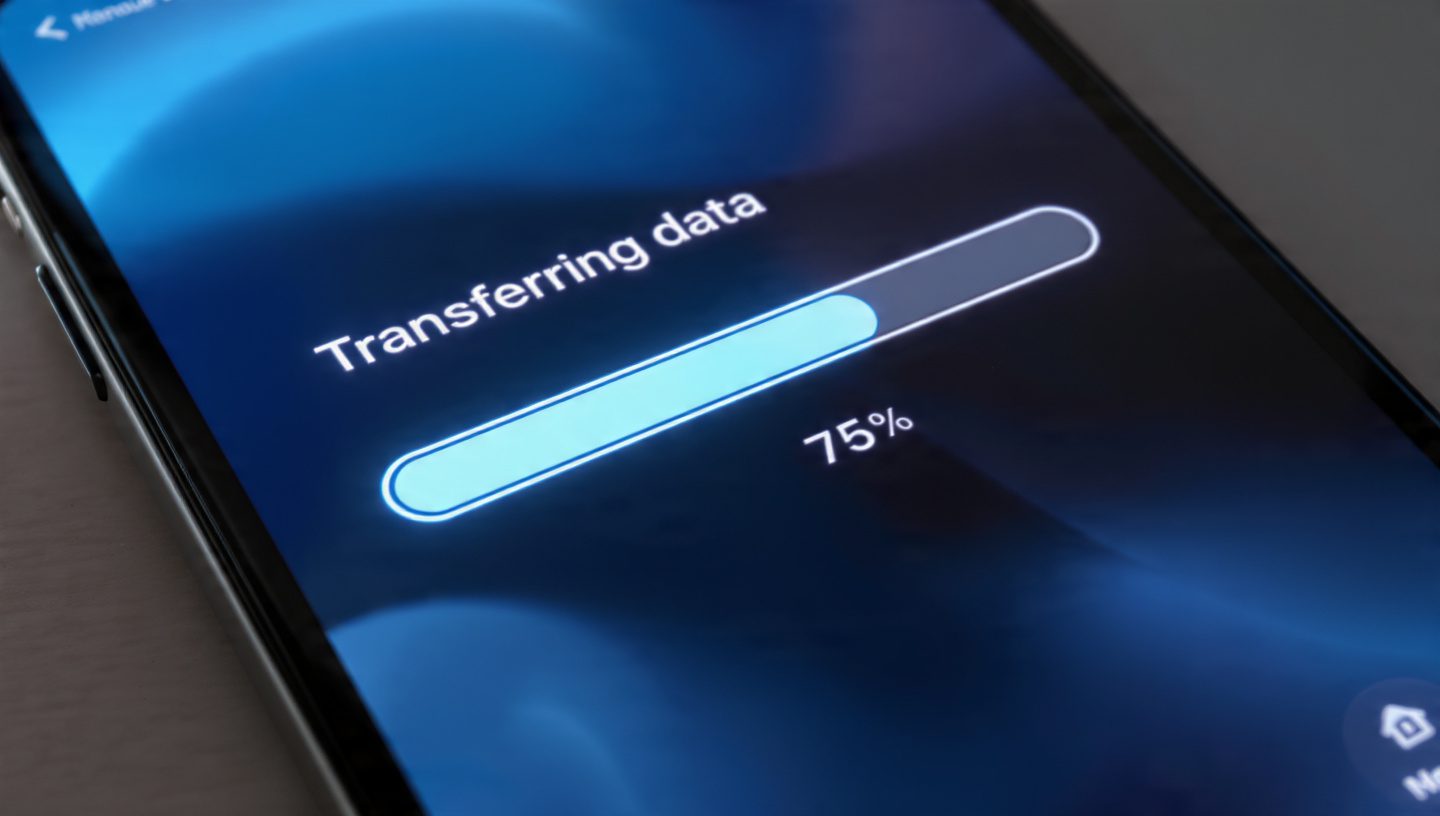
One of the easiest scenarios is learning how to move data from Android to Android. Modern Android phones include powerful built-in migration tools that automatically transfer information from one device to another.
When you first turn on a new Android phone, the setup process usually asks if you want to copy data from an existing device. This process can be completed through Wi-Fi, a cable connection, or cloud backup. The system then scans the old phone and identifies all transferable data.
Contacts are transferred automatically through your Google account if synchronization is enabled. Photos and videos stored in the device gallery can also move during the transfer process. Apps installed on the old phone will automatically reinstall on the new device. Many apps even restore your login state and saved settings.
Messages and call history can also be copied depending on the manufacturer and migration tool used. Some Android brands provide specialized transfer applications that simplify the process further. These apps guide users step-by-step and ensure that nothing important is missed.
The most important step before starting the transfer is ensuring that both phones are charged and connected to stable Wi-Fi. Large data transfers may take time, especially when thousands of photos or videos are involved.
Once the process completes, the new phone usually looks almost identical to the old one, making the transition nearly effortless.
Transfer Data From iPhone to iPhone With Quick Start Setup
For users within the Apple ecosystem, learning how to transfer data from iPhone to iPhone is incredibly simple thanks to Apple’s Quick Start feature. This system is designed to replicate the entire phone environment within minutes.
When the new iPhone is powered on near the old one, the Quick Start screen automatically appears. The old device displays an animation that must be scanned with the new phone’s camera. This establishes a secure connection between the two devices.
After the connection is established, the system asks how you want to transfer data. Users can choose direct wireless transfer, cable transfer, or restoration from an iCloud backup. Direct transfer is often the fastest method if both devices are available.
The migration includes contacts, photos, messages, apps, system settings, Wi-Fi passwords, and even home screen layout. Apple designed this system so the new device feels immediately familiar.
During the transfer process the phones must remain close together and connected to power. Interruptions can slow the process or require restarting the transfer.
Once completed, the new iPhone contains nearly everything from the previous device. For most users this process takes between twenty minutes and an hour depending on the amount of stored data.
Transfer Contacts Photos and Apps to New Phone Without Losing Files
One of the most common concerns when switching devices is learning how to transfer contacts photos and apps to new phone safely. These three types of data represent the majority of personal information stored on smartphones.
Contacts are usually the easiest to transfer. Most modern phones store contacts in cloud accounts such as Google or Apple ID. Once you sign into the same account on the new device, contacts automatically appear.
Photos and videos require more attention because they often consume the largest amount of storage. Migration tools usually copy them directly between devices. However, users should confirm that all media files appear correctly after the transfer.
Apps are typically reinstalled automatically through the app store associated with your account. However, app data may vary. Some apps store information locally while others store it online. Apps connected to cloud services will restore data automatically once you log in.
Checking each category carefully after the transfer ensures that nothing is missing. It is always wise to keep the old phone untouched until everything has been verified on the new device.
This careful approach prevents accidental loss of important files.

Copy Data From Android to iPhone During Platform Switching
Many users eventually switch between operating systems, which raises the question of how to copy data from Android to iPhone efficiently. Fortunately, there are specialized tools designed specifically for this type of migration.
During the iPhone setup process, Apple provides an option called “Move Data from Android.” This method uses a special Android application that establishes a secure connection between the two devices.
The system transfers contacts, message history, photos, videos, email accounts, calendars, and bookmarks. Some compatible apps may also migrate automatically if they exist on both platforms.
Because Android and iOS handle data differently, not every piece of information can transfer perfectly. Certain app data may require logging in again manually after installation. However, the most important personal data typically moves successfully.
The transfer process works best when both phones are connected to the same Wi-Fi network. Interruptions should be avoided because restarting the migration can take additional time.
Although switching platforms can seem intimidating, the available migration tools make the process surprisingly manageable.
Transfer Data to New Phone Using Cloud Backup Solutions
Another powerful strategy is learning how to transfer data to new phone using cloud backup services. Cloud storage has transformed how people migrate data between devices.
Instead of transferring files directly between phones, cloud backup stores all data securely online. When the new phone is activated, it simply downloads the information from the cloud.
This method offers several advantages. First, it protects data even if the old phone is damaged or lost. Second, it allows users to restore data without needing both devices physically present. Third, it often provides a more complete backup of system settings and app data.
Cloud backups usually include contacts, photos, app data, device settings, messages, and more. Once the new phone signs into the same account, the restoration process begins automatically.
The main limitation of cloud transfer is internet speed. Large backups may require several hours to download completely. However, the process runs automatically in the background and requires minimal user interaction.
Cloud migration is especially useful when upgrading devices remotely or replacing a lost phone.
Preparing Your Old Phone Before Starting the Transfer
Before starting any migration process, proper preparation of the old device is extremely important. Many transfer problems occur because users skip these preparation steps.
First, ensure the device is fully updated. Software updates often include improvements to migration tools and data synchronization features. Running the latest system version reduces compatibility issues.
Next, perform a complete backup. Even if you plan to transfer data directly between phones, having a backup adds an extra layer of safety.
Cleaning unnecessary files from the old phone also helps. Removing duplicate photos, unused apps, and temporary files speeds up the transfer process and reduces clutter on the new device.
Users should also verify that important accounts are synchronized. Contacts, calendars, and notes should be confirmed to exist in cloud accounts rather than only on the device.
Finally, ensure both devices are sufficiently charged before beginning the transfer. Data migration can take significant time depending on storage size.
These preparation steps dramatically reduce the risk of transfer errors.
Common Data Transfer Problems and How to Avoid Them
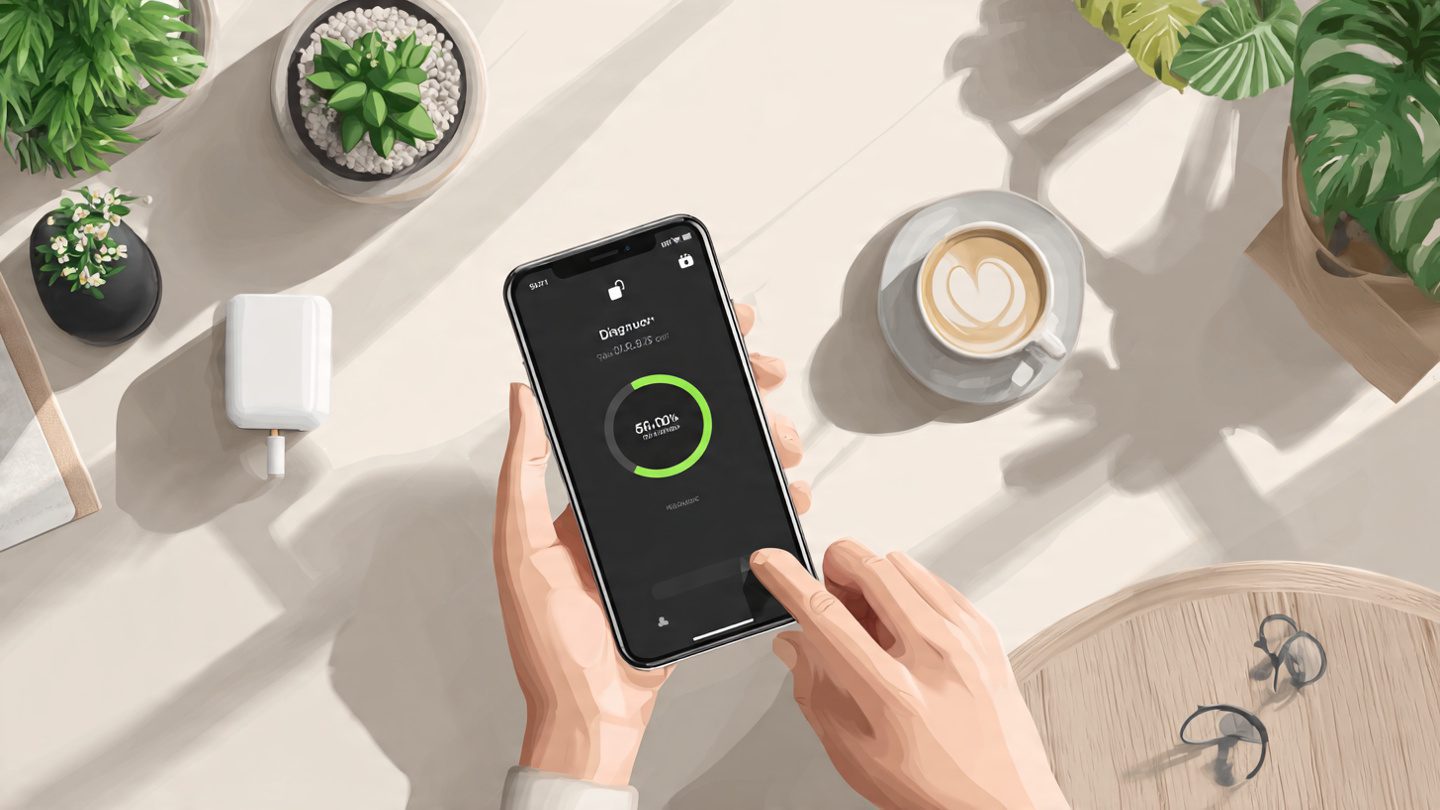
Despite advanced technology, data transfers sometimes encounter problems. Understanding these potential issues helps prevent frustration during migration.
One common problem occurs when the transfer process is interrupted. This can happen if the Wi-Fi connection drops or if the devices move too far apart during wireless migration. Keeping devices connected to power and stable networks prevents interruptions.
Another issue involves incomplete transfers. Sometimes certain files do not copy properly. This is why verifying photos, contacts, and messages after migration is important.
App compatibility can also create confusion. Not every app available on one platform exists on another. In these cases users may need to install alternative apps or sign in again manually.
Storage limitations on the new phone can also cause issues. If the new device has less storage capacity than the old one, some files may not transfer successfully.
Careful preparation and verification help avoid these problems and ensure a smooth transition.
Final Checklist to Confirm Your Data Transfer Was Successful
After completing the transfer, users should perform a thorough review of the new device. This final verification ensures that no important information was lost.
Start by checking contacts. Scroll through the list and confirm that names and phone numbers appear correctly. Next, open the photo gallery and verify that albums and images are intact.
Messages should also be reviewed. Open several conversations and confirm that older messages appear correctly. Call history should also be examined.
Apps should be opened individually to verify that accounts remain logged in. Some apps may require reauthentication for security reasons.
Finally, confirm that important documents and files are accessible. Checking cloud storage apps, note-taking apps, and email attachments ensures nothing was overlooked.
Once everything has been verified, the old phone can safely be reset or prepared for resale.
Why Does My Phone Run Out of Battery So Fast, and How Can I Extend Its Battery Life?
How to quickly free up space on your phone when it’s full
Why Is My Phone Slow, and How Can I Speed It Up?
Summary
Transferring data to a new phone may seem complicated, but modern technology makes the process remarkably simple. Whether moving between Android devices, switching iPhones, or migrating between operating systems, reliable tools ensure that contacts, photos, apps, and personal information transfer safely. Cloud backups, direct device transfers, and specialized migration apps all provide effective solutions. Proper preparation and careful verification ensure that nothing important is lost during the transition.
FAQ
1. How long does phone data transfer usually take?
Most transfers take between twenty minutes and one hour depending on the amount of stored data.
2. Can I transfer everything from my old phone?
Most personal data can transfer, but some app settings may require logging in again.
3. Do I need both phones during the transfer?
Direct transfer requires both devices, but cloud backup restoration does not.
4. Will my photos lose quality during transfer?
No. Proper migration tools copy original files without reducing quality.
5. Should I reset my old phone immediately after transfer?
No. Wait until you confirm that all data has successfully moved to the new device.
CTA
Upgrading to a new phone should feel exciting, not stressful. Follow these proven data transfer methods to move everything safely and start enjoying your new device immediately.